Use FreeFlyer's Scripting Language
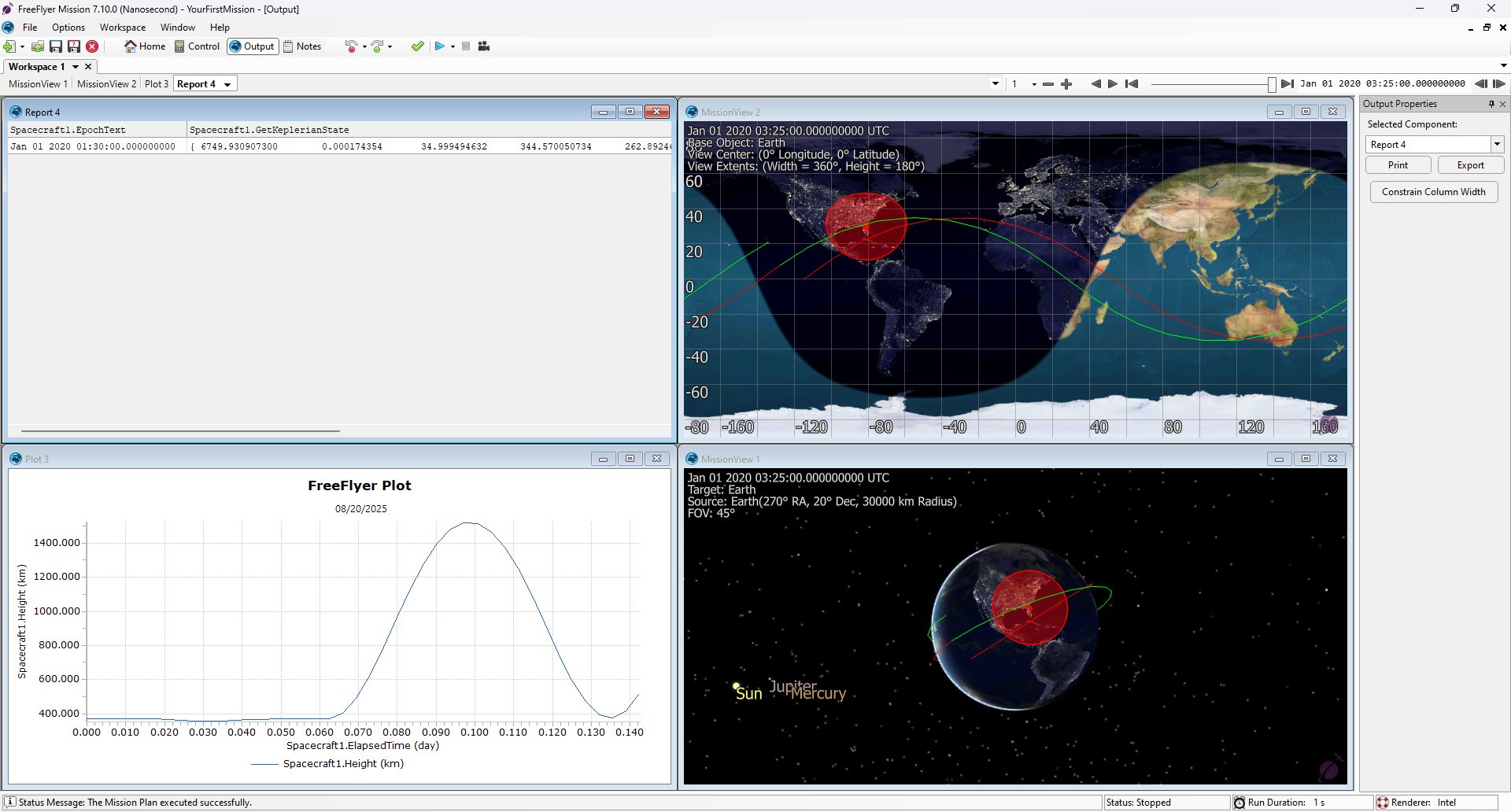
In this section, you will use FreeFlyer's scripting language to execute a maneuver, report the spacecraft's state at the time of the maneuver, and change the color of the spacecraft's tail history. This can all be accomplished with five simple lines of code.
-
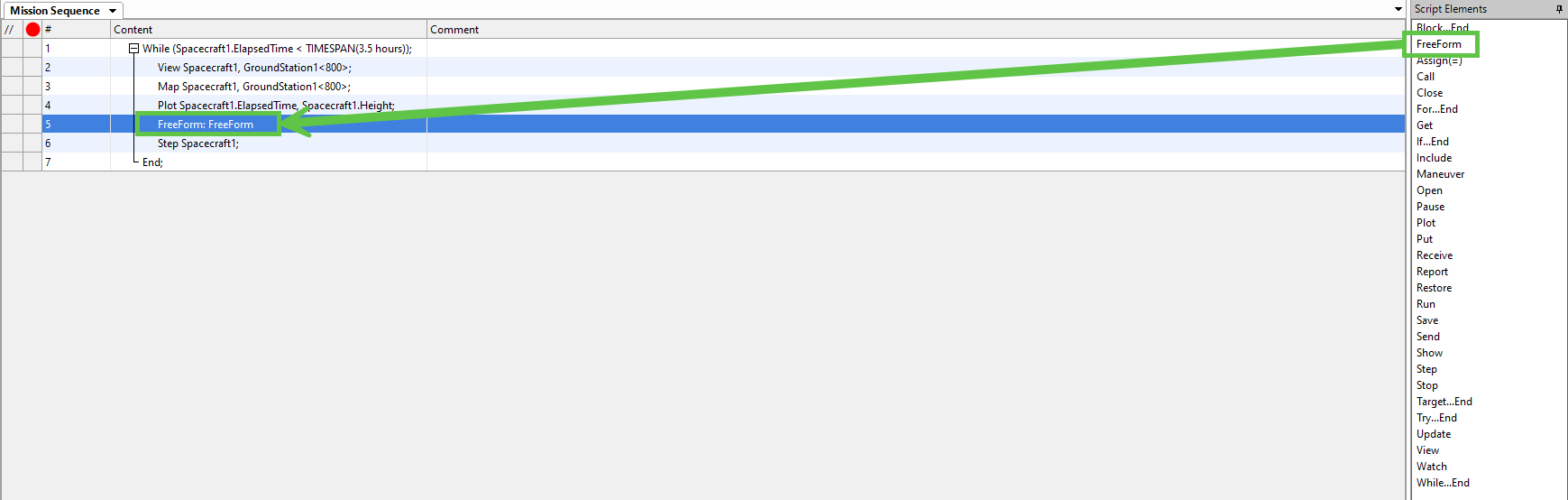
Under Script Elements, drag a FreeForm script block into the Mission Sequence and drop it inside the While Loop.
-
Double-click on the FreeForm script block inside the Mission Sequence to open FreeFlyer's scripting language editor.
-
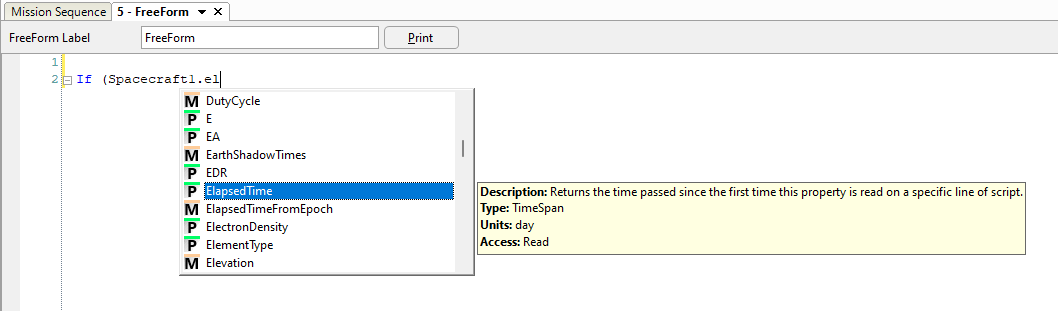
For this tutorial, you want to execute a maneuver 1.5 hours into your simulation. Enter the following code in your FreeForm script block to set up an If statement which you will use to control when the maneuver should happen.
If (Spacecraft1.ElapsedTime == TIMESPAN(1.5 hours));
End;Note: An If statement allows a portion of code to be executed only if a specified condition is true.
Tip: FreeFlyer's scripting language uses IntelliSense, which is a code feature that allows you to auto-complete code as you type, keep track of properties (P), methods (M), objects (O), and more. It also provides a description for each element you use in FreeFlyer's scripting language.
-
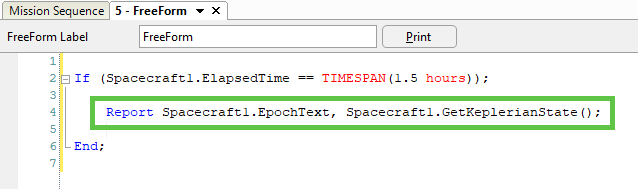
Now you want to report the spacecraft's state at the time of the maneuver. You will achieve this by using the Report command, the EpochText property, and the GetKeplerianState() method.
-
The Report command outputs text or numerical data.
-
A property is a physical characteristic or a piece of data that is associated with a FreeFlyer object.
-
A method is an action that is built into FreeFlyer's engine. Many methods in FreeFlyer solve common astrodynamics problems behind the scenes, so you do not need to hard-code solutions.
Enter the following code inside of your If statement:
Report Spacecraft1.EpochText, Spacecraft1.GetKeplerianState();
-
-
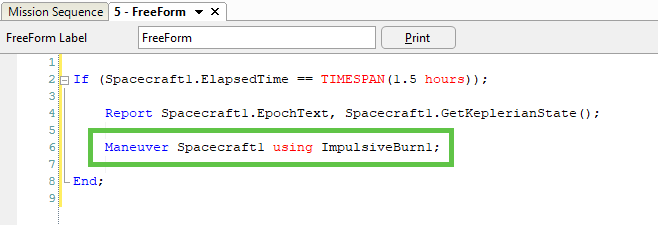
Next, use the Maneuver command to allow your spacecraft to execute the Impulsive Burn that you set up in the previous section of this guide. Enter the following code inside of your If statement:
Maneuver Spacecraft1 using ImpulsiveBurn1;
-
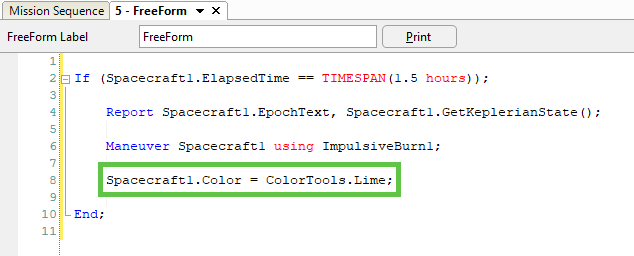
Finally, change the color of the spacecraft tail history after the maneuver. This will help you visualize the spacecraft propagation pre-maneuver and post-maneuver. Enter the following code inside of your If statement:
Spacecraft1.Color = ColorTools.Lime;
-
It is always a good idea to leave comments on your code. Comments are text that is ignored by FreeFlyer's engine and are used to make the code easy to understand. Add a comment to your code by entering "//" and typing some text. For example:
Spacecraft1.Color = ColorTools.Lime; // Change the color of the spacecraft tail history
-
Select the Syntax Check Icon
 or enter CTRL + Q . Performing a syntax check allows you to catch any typos or rule violations in your code before your run your Mission Plan. If there are no errors, the Status Message at the bottom of the Control Screen will state that your Mission Plan passed the syntax check.
 Note: All FreeFlyer Script lines must end with a semi-colon ;. Typos such as this are often caught by performing a Syntax Check.

-
Save your Mission Plan. You will notice that the marker next to each line of code will change from yellow to green, indicating that you saved your changes in the FreeForm script block.
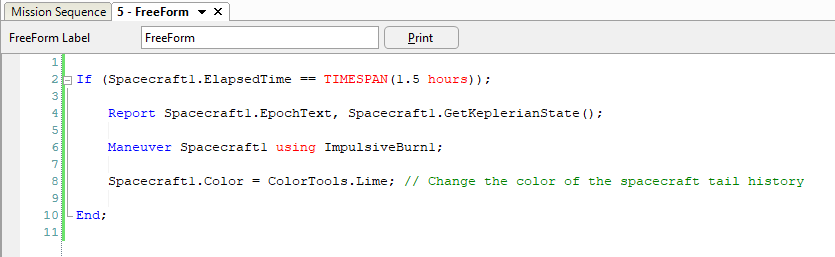
Note: In plain English, your FreeForm script block reads "If Spacecraft1 is 1.5 hours into the simulation, report the epoch and the spacecraft state, maneuver Spacecraft1 using ImpulsiveBurn1, and change the color of Spacecraft1 to lime".
-
Select the Run Icon
 from the Navigation Bar or enter CTRL + R. Explore the new output to see how the simulation changed with your maneuver and the new report that you created.