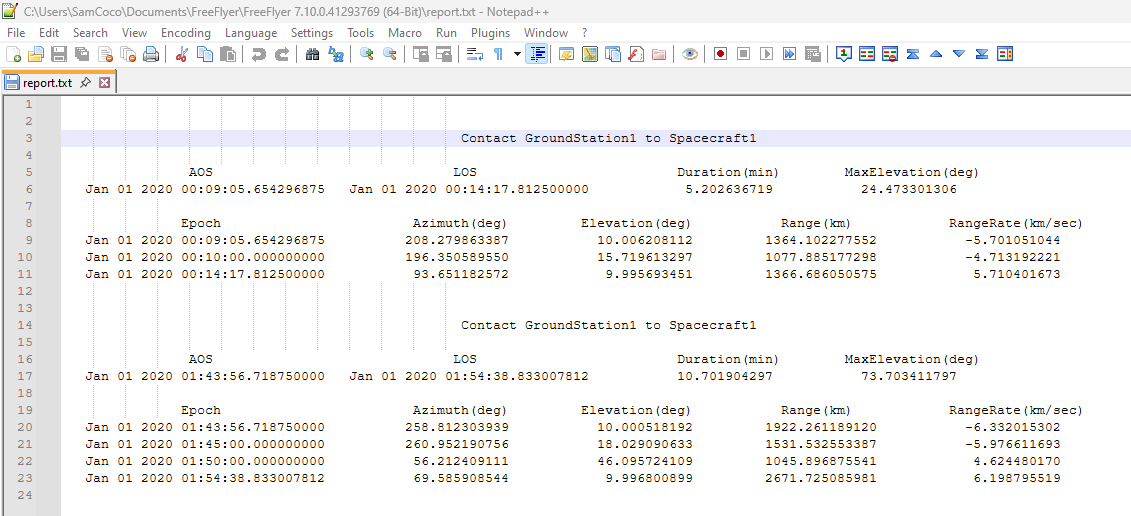
Create a Report File
You can output data to external files using FreeFlyer. For this tutorial, you will use a Report command and create a pre-formated text file that contains information on the contact periods between a spacecraft and a ground station.
-
Under Script Elements, drag a Report command into the Mission Sequence and drop it inside the While Loop.
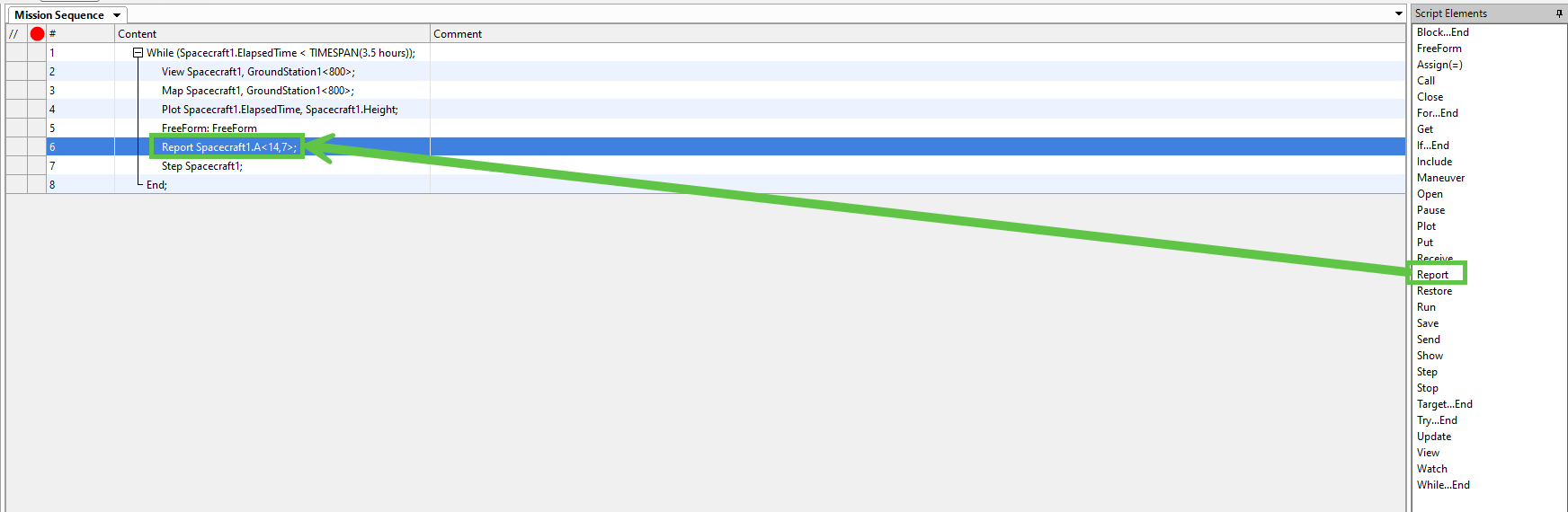
-
Double-click on the Report command inside the Mission Sequence to open its graphical user interface editor.
-
Select the drop down arrow under What to Report. Enter "PassData-1" for the property under Choose a property or method.
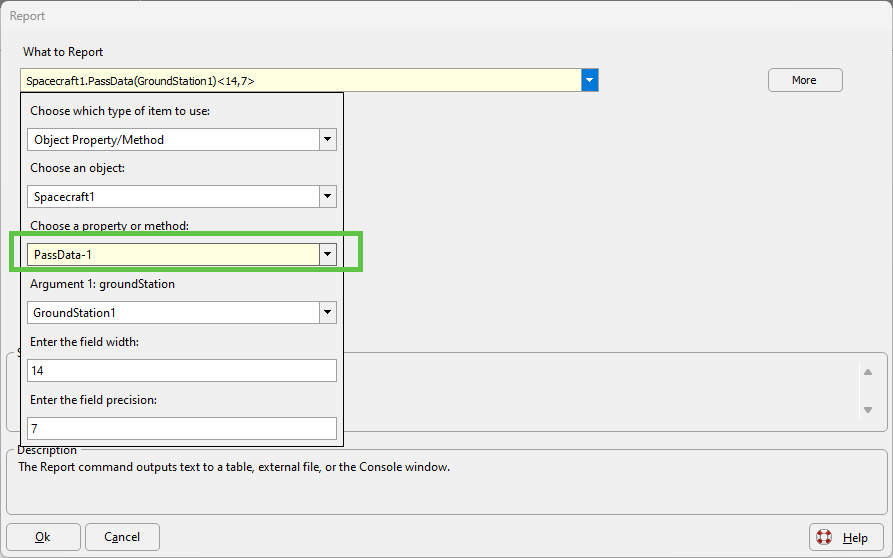
-
Select the drop down arrow next to Where to Report then select "File". This will create a file called "report.txt" that contains the PassData between the spacecraft and the ground station. By default, the report.txt file will be saved in the same location that your Mission Plan is saved. You can select "Browse" to specify a different location.
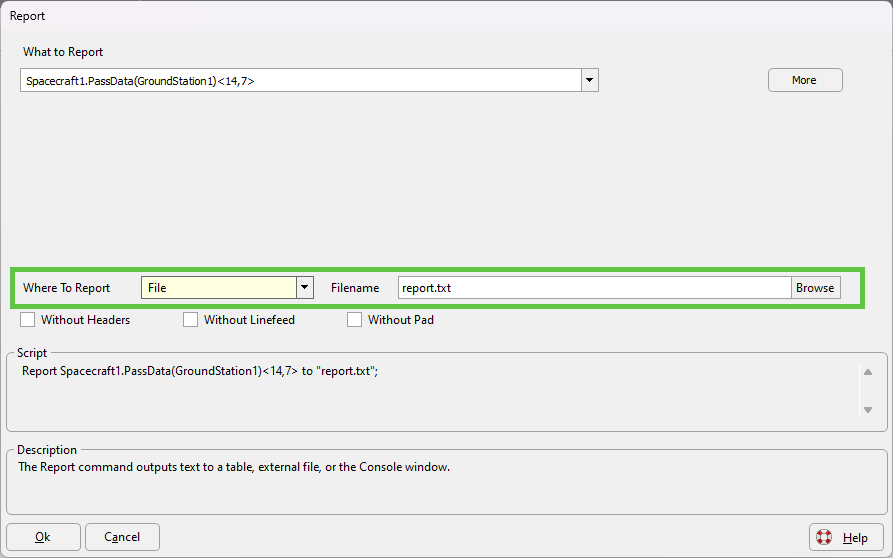
-
Click "OK" to save your changes and close the Report command editor.
-
Select the Run Icon
 from the Navigation Bar or enter CTRL + R. Since you reported data to a text file, you will not see the PassData report on the Output Screen. Use the file explorer on your computer to navigate to the location that you saved your Mission Plan. There you will see the "report.txt" file.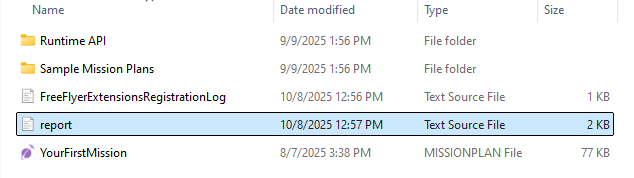
-
Open the "report.txt" file using a text editor such as Notepad++ and examine the data.